
The second tab under your Org Settings contains options for integrating Hutte with other software your team uses.
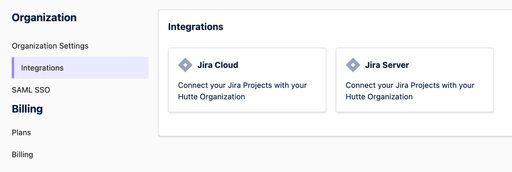
Right now, there’s only the option to connect Hutte with Jira, but we have more integrations coming in the future.
Hutte and Jira
Using Hutte alongside Jira is simple, and can streamline your team’s workflow significantly. It’s also easy to set up. Here, you’ll learn how to link your Jira account with Hutte, and how to create a new feature in Hutte through Jira.
How to link your Hutte and Jira accounts
- First, log into your Jira instance (as an administrator).
- Next, click on the ”Apps” dropdown menu and select ”Find new apps” or “Explore more apps”. This will open a search field.
- Search for ”Hutte for Jira” and click on the app’s card when it appears. This will open the ”App Details” screen.
- Click on “Get app” to install the Hutte for Jira app. After it’s installed, click on “Close” in the ”Installed and ready to go” window.
- Congrats! You’ve installed Hutte for Jira. Now, you’ll need to configure it to set up a connection to your Hutte environment.
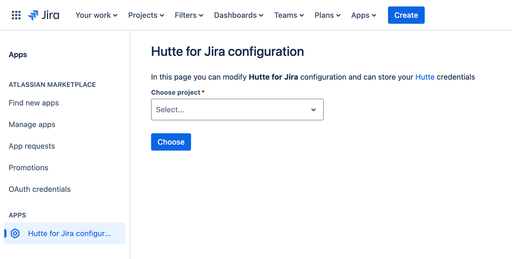
- Navigate to your installed Apps, and click on “Hutte for Jira configuration”.
- Here, use the drop-down menu to select the Jira project you’d like to link to Hutte.
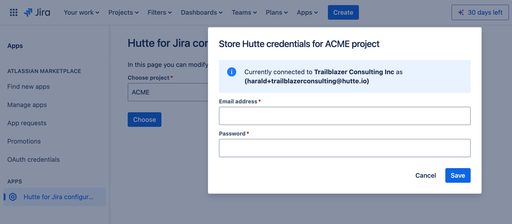
- This will open a dialogue prompting you to enter and store your Hutte credentials.
- After entering your credentials, click “Save” to complete the dialogue.
- Now you’re all set! Your Hutte project is linked with your Jira, and you can create new Hutte features directly from your Jira Issue View.
How to create a new Hutte feature with Jira
You can create a new feature in Hutte directly from the Issue View in Jira.
To do this, your Hutte and Jira accounts must already be linked (see instructions above).
- Navigate to the issue view of your selected project in Jira.
- Underneath the “Description” section, you’ll see “Hutte for Jira”. Click on the “Create New Feature” button.
- This will open a drop-down menu where you can select which Hutte project you want to create the feature in. Once you’ve made your selection, click “Go to Hutte”.
- After clicking continue on the “Opening external link” dialogue, Hutte will open.
- Next, you’ll see the “Start new feature” dialogue. Click on “Create”.
- You’ve done it! Your new feature is available and linked from your Jira issue.
When you create a new Hutte feature from Jira, the feature’s name will be pre-populated with a combination of Issue Reference and Issue Title from the Jira project. We suggest using this default name unless you have an important reason to change it.
Using this default name means that when you later create a pull request for the feature, the issue reference will be continuously passed through, and can be referenced and used by an integration between your Git host and Jira, such as automatically completing your issue when the pull request is merged.