
You can use a hutte.yml file to customize your Scratch Orgs and Sandbox Features. This allows you to accomplish things like adding automation when creating your Scratch Orgs, or adding custom-coded buttons to your Sandbox and Scratch Org features to accomplish specific tasks with just a click.
Adding a hutte.yml configuration to your Git repository
- To get started, create an empty file in the root directory of your connected Git repository and name it
hutte.yml. - Add the following file to the root directory of your SFDX project and Git commit/push it:
Configuring your project’s Hutte.yml file
- Now that your
hutte.ymlfile is set up, you can customize it to suit your project’s needs. - Under Project Settings, navigate to the “Scripts (Hutte.yml)” tab. This will show you the current
hutte.ymlfile that is connected through your Git repository. - You can make changes to your
hutte.ymlfile in a text editor and then commit the changes to Git. Those updates will be reflected here, under Project Settings.
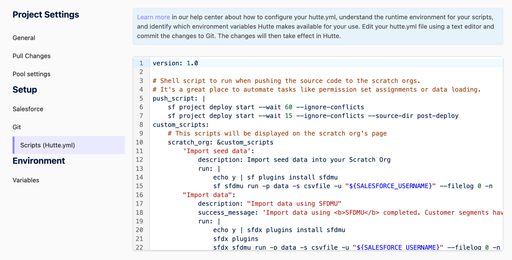
You can get inspiration for crafting your hutte.yml from the Recipes section within Hutte.
Anatomy of a Hutte.yml file
Here’s an overview of the main sections you’ll find in your hutte.yml file:
-
setup_script(optional; Scratch Org Projects only)- Contains whatever scripts you want to run directly after your Scratch Org is created.
- You can use this script to specify a different Setup behavior for regular Scratch Orgs (created via "New Scratch Org") and Pool Orgs. Pool Orgs stop after
setup_script, while regular Scratch Orgs will executesetup_scriptfirst, followed bypush_script.
-
push_script(required; Scratch Org Projects only)- Runs after
setup_script. It is typically used to push your project's source, assign permission sets, load seed data, etc.
- Runs after
-
custom_scripts(optional; Scratch Org and Sandbox Projects)- Here, you can specify unique custom scripts that your project’s users will be able to execute via custom buttons. This feature is perfect for non-mandatory, time-consuming actions that users only want to execute selectively, such as loading specific sets of test data.
- Each entry in this section will be reflected as a custom button in the respective detail view of Sandbox Features or Scratch Orgs in Hutte, depending on whether you place the script under
scratch_org:orsandbox:.
Example Hutte.yml file
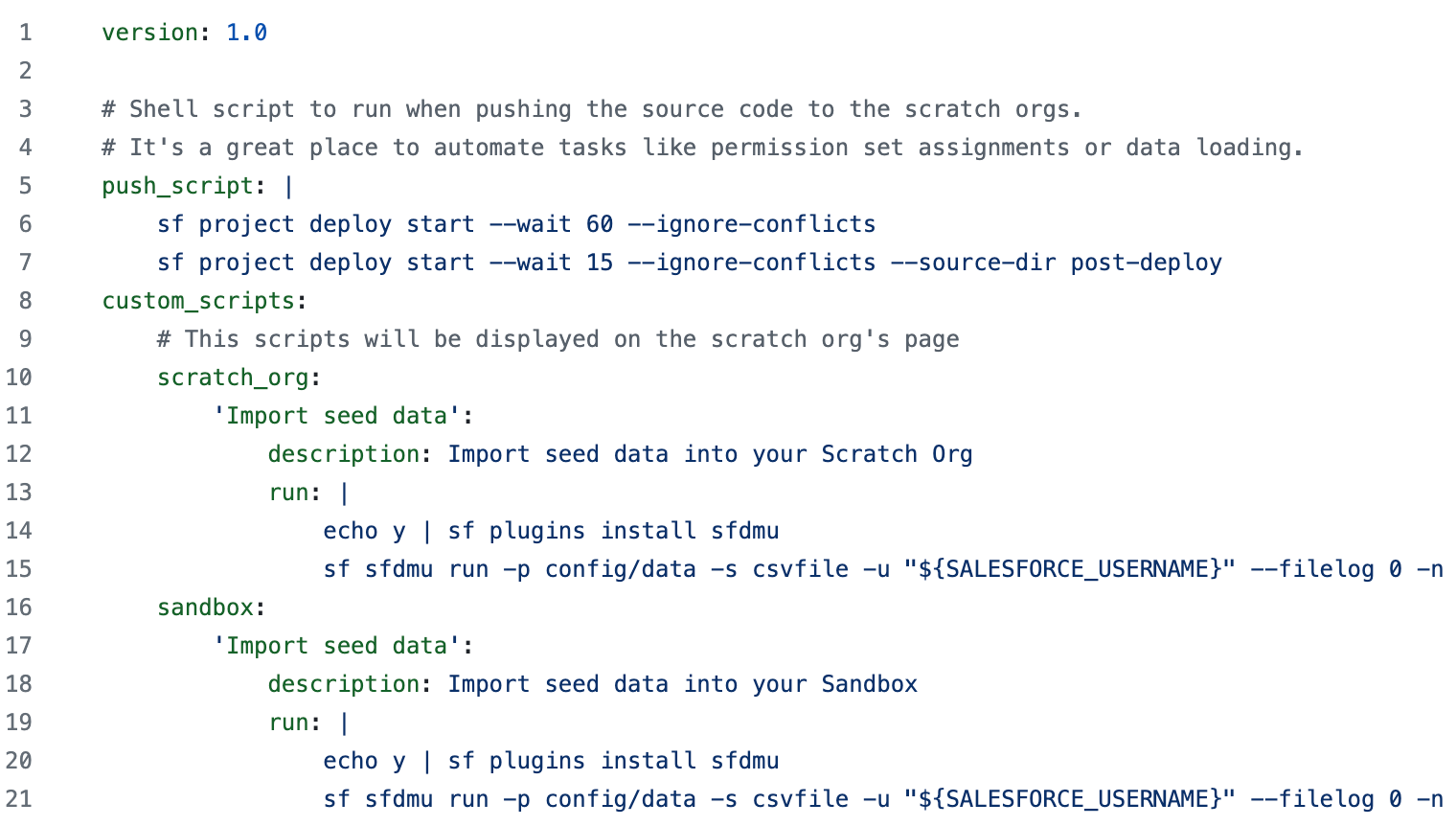
This is a very simple hutte.yml, which adds one custom button to the Hutte project detail view for both Scratch Org and Sandbox projects. When clicked, the button will import seed data, leveraging the open source SF Plugin SFDMU.
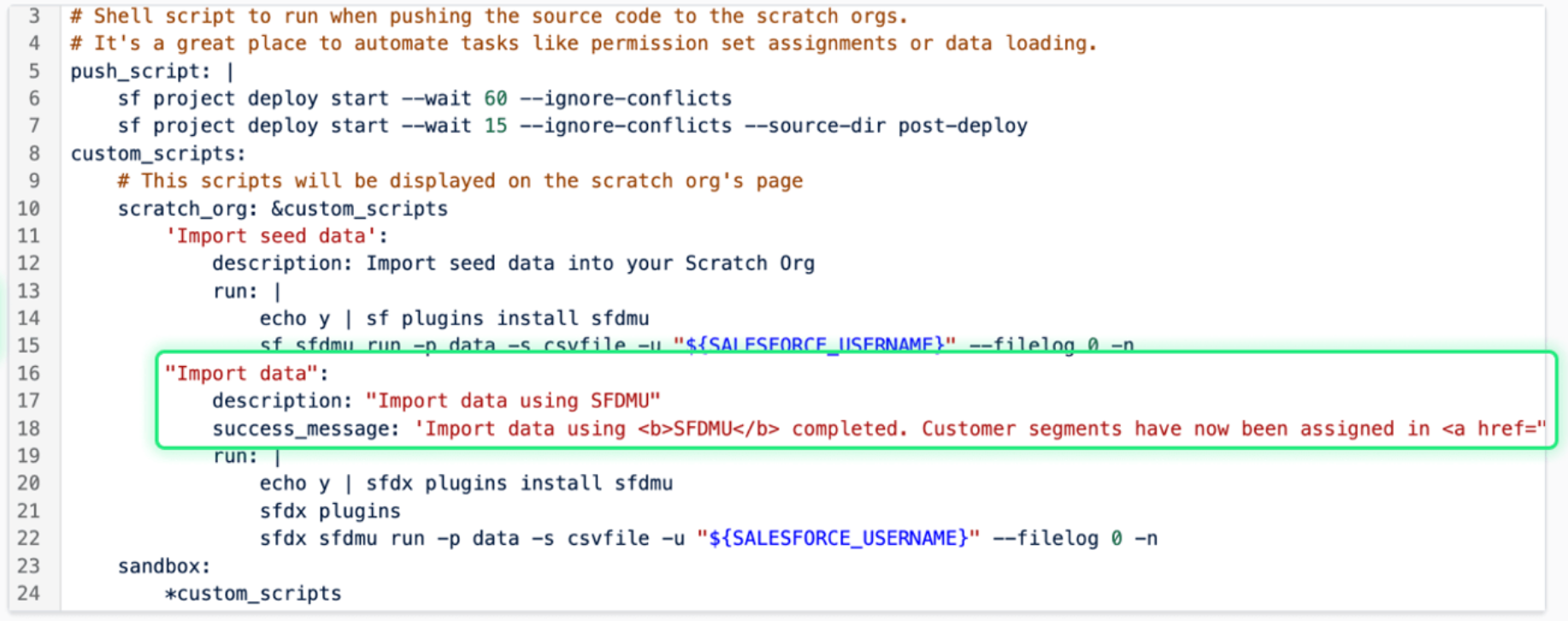
You can also optionally add a custom success message to a custom button you’ve created by adding the property "success_message" into its entry in your Hutte.yml. This text can be formatted and can also hold hyperlinks.
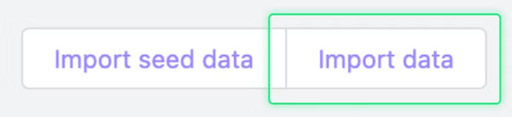
Here’s an example of what the end result of this custom button script will look like in Hutte:
When this example custom button is clicked, the action will be performed, and you’ll see this message:
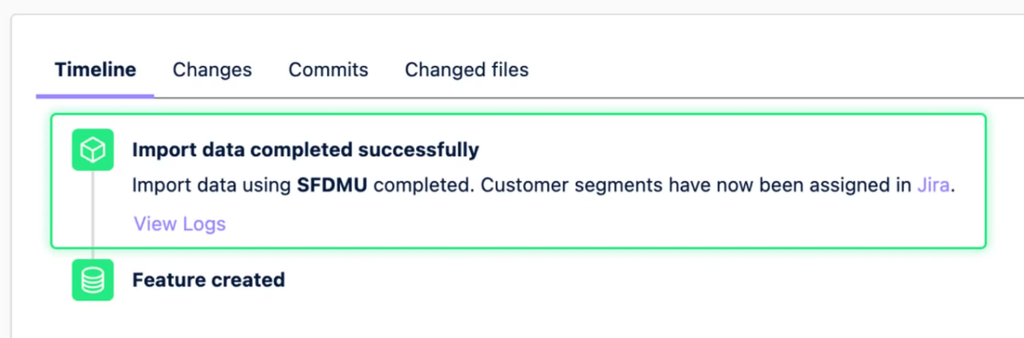
You can re-use custom button declarations for Scratch Org and Sandbox Projects using the anchor syntax, following this example. With &anchor_name you assign a section of the file to the anchor, with *anchor_name you can reference it.
custom_scripts:
  scratch_org: &custom_scripts
	  "Import Data":
			description: "Import data using SFDMU"
      success_message: 'Import data using SFDMU completed.'
      run: |
        echo y | sfdx plugins install sfdmu
        sfdx plugins
        sfdx sfdmu run -p data -s csvfile -u "${SALESFORCE_USERNAME}" --filelog 0 -n
  sandbox: *custom_scripts
Advanced custom buttons with user input
Your custom buttons can prompt users for input and utilize it during execution. Below is a more refined example of the previously mentioned data import, allowing users to choose between three directories. It introduces an input variable called sourcefolder, which the run script can access using ${HUTTE_INPUT_sourcefolder}. The same approach applies to any input variable you define.
In addition to the default string type, we support choice and boolean
"Import Data":
  description: "Import data using SFDMU"
  run: |
    set -euo pipefail # fail fast
    cp "${HUTTE_INPUT_sourcefolder}/data-import.json" "${HUTTE_INPUT_sourcefolder}/export.json"
    echo y | sf plugins install sfdmu
    sf sfdmu run --path "${HUTTE_INPUT_sourcefolder}" -s csvfile -u "${SALESFORCE_USERNAME}" --filelog 0 -n
  inputs:
    sourcefolder:
      label: "Source Folder"
      description: "Choose the repository folder to load data from."
      type: choice
      default: "data/qa-data"
      required: true
      options:
        - data/development-baseline-data
        - data/qa-data
        - data/package-configuration-data