
The first tab under your Project Settings contains several settings which affect the whole project. You’ll see slightly different options here for Scratch Org projects vs. Sandbox projects.
Project name
Here, you can rename your project by typing the new name into the text field and clicking “Save”.
Default duration of Scratch Orgs created manually (Scratch Org projects only)
The number entered here will dictate the number of days that a manually-created Scratch Org will last when you click the “New Scratch Org” button on your main project dashboard.
Base Git branch
Here you can specify the Git branch that contains the source code that will be pushed to this Scratch Org. Usually this will be “Main”, but sometimes you’ll want to specify a different branch.
Path to SFDX Project
If your SFDX project is not located in the root directory of your connected Git repository, you’ll need to enter the path to your project in this field, specifically the directory where your sfdx-project.json lives.
Salesforce CLI (sf) version
Here you can see the Salesforce CLI (sf) version that is used for executing any code defined in your hutte.yml. We recommend to use the default option, “latest”.
Allow parallel features (Sandbox projects only)
Enable this option to allow the creation of multiple features simultaneously within a single Sandbox. Keep in mind that when multiple features are active concurrently, it becomes challenging to discern which specific metadata changes pertain to each individual feature.
This control doesn’t apply to Pool Orgs, since they are designed to be short living
Scratch Org configuration file (Scratch Org projects only)
Here, you’ll find a code field that contains your Scratch Org’s default configuration file.
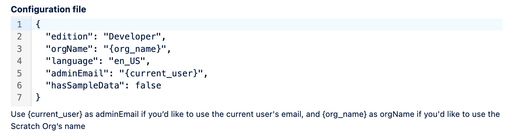
You can change the “shape” of your Scratch Orgs by editing this file. If you're already using an SFDX project, you'd likely copy the content of your config/project-scratch-def.json there. You can use {current_user} for adminEmail and {org_name} for orgName to dynamically set those values for every Scratch Org created from Hutte.
If you would like to mimic the shape of a production environment or a developer edition, we suggest to make yourself familiar with Salesforce’s Org Shape capabilities, which are perfectly supported by Hutte.
Packaging Flags
Here you can toggle two options on and off. They are both set to “Off” by default.
- No ancestors
- Toggling this “On” will exclude second-generation managed package (2GP) ancestors in Scratch Orgs you create in this project.
- No namespace
- Toggling this “On” will cause Scratch Orgs created in this project to have no namespace, even if the Dev Hub has a namespace.
Danger zone
Here, you can deactivate your project, or delete your project completely, as long as you have the necessary permissions to do so.
- Deactivate project
- If your project is on hold and there is no need to create features or pull changes, you can deactivate it to free up a project slot in your plan. The project setup will be preserved, and you can reactivate it anytime, provided your current plan's project limit permits.
- Delete project
- If you want to delete your project entirely, type your organization’s name into the text field, and click “Delete”. This action is irreversible.