
The third tab under your Project Settings allows you to set up a ready-to-use pool of Scratch Orgs or Sandboxes for your team to use.
To set up Org Pooling, you’ll need to access your project’s Pool settings.
- From your project’s main dashboard, navigate to “Project Settings” in the top right corner.
- Then, click on “Pool settings” from the list of options along the left side.

You’ll see a different set of options depending on whether your project is a Scratch Org project or a Sandbox project.
Setting up a pool of Scratch Orgs
If you’re working with a Scratch Org project, you’ll see the following options:
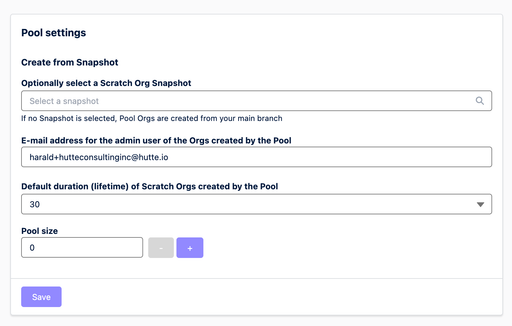
Create from Snapshot
Here, you have the option to specify a Scratch Org Snapshot to create your Pool Orgs from. If you don’t select one, your Pool Orgs will be created and refreshed from your main branch.
Email address for the admin user of the Orgs created by the Pool
This email address is where all information about your Scratch Orgs will be sent, such as error messages. You can easily change this to a different email address - just type a new one in and click “Save” down at the bottom of the window.
Default duration (lifetime) of Scratch Orgs created by the Pool
This is the default length of time (in days) that your Scratch Orgs will exist before they expire.
Pool size
This is the number of Scratch Orgs that will be in your Pool.
Increasing this number will automatically start spinning up the specified number of Scratch Orgs into your project’s Org Pool.
We recommend to set this to the approximate number of Scratch Orgs that your team will use concurrently. Two Pool orgs for each of your team members is a good rule of thumb, but you can always set this to more or fewer depending on the needs of your team.
Setting up a pool of Sandboxes
If you’re working with a Sandbox project, you’ll see the following options:
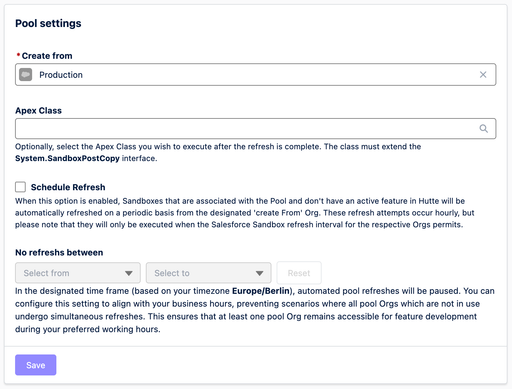
Create from
Here, you can specify the branch that you’d like your Sandbox Pool Orgs to be created and refreshed from. Usually this will just be Production, but you can easily choose a different one.
Apex Class
Here, you can optionally select the Apex Class that you wish to execute after your Sandbox Pool Orgs refresh. The class must implement the System.SandboxPostCopy interface.
Schedule Refresh
You can check this box to enable scheduled Sandbox refreshes for your project.
While this feature is enabled, Sandboxes within your Pool that do not have an active feature in Hutte will be automatically refreshed periodically from the specified Org in the “Create From” field above. When refreshing from a Sandbox of the same license type (Developer or Developer Pro), both metadata and data will be copied. This enables “seeding” your developer sandbox with a predefined data setup created in a longer-living environment, such as a system integration developer sandbox.
These refresh attempts occur hourly, but they will only be executed when the Salesforce Sandbox refresh interval for the respective Orgs permits them to.
No refreshes between
Here, you can specify a time frame (based on your timezone) during which automated Pool refreshes will be paused.
You can configure this setting to align with your business hours, preventing scenarios where all Pool Orgs which aren’t being used experience simultaneous refreshes.
This ensures that at least one Pool Org will always remain accessible for feature development during your preferred working hours.